
Why keyboard shortcuts matter
Every time you reach for the mouse, you break your flow. In a tool you use dozens of times a day, those interruptions add up. SaleQ is built for people who live in their tools — the same people who use Vim keybindings, terminal multiplexers, and keyboard launchers like Raycast or Alfred.
The result: you move faster, stay focused, and actually enjoy using SaleQ instead of dreading it.
Cmd+K: your command palette
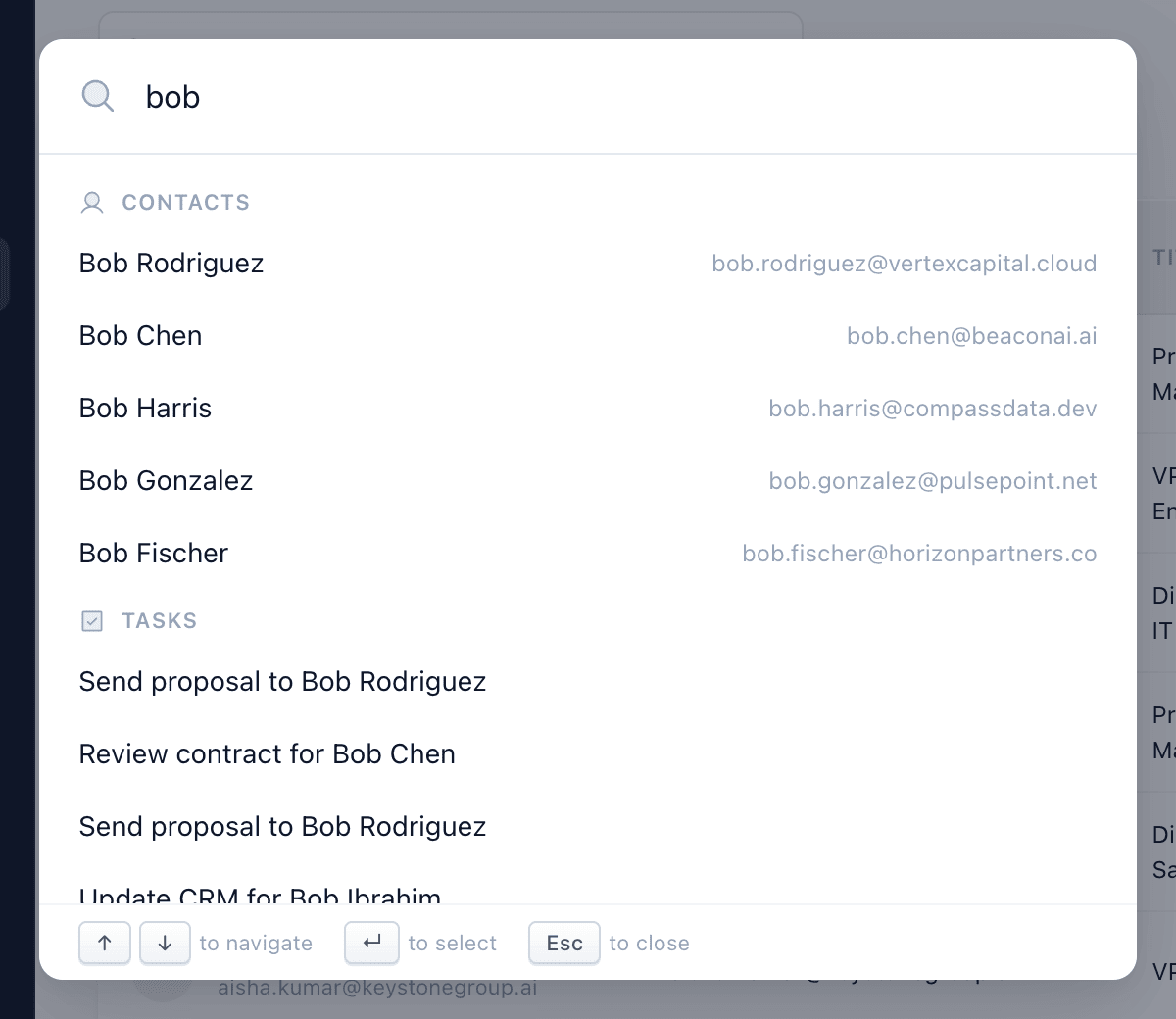
Press Cmd+K (or Ctrl+K on Windows/Linux) to open the command palette. From here you can:
- Search everything — clients, engagements, tasks, and activities, all at once
- Navigate instantly — type a page name and jump there
- Create resources — start typing "new client" or "new engagement" to create without navigating away
- Run actions — common operations like "go to pipeline" or "open calendar"
Use ↑/↓ to move through results and Enter to open the selected item.
Global hotkeys
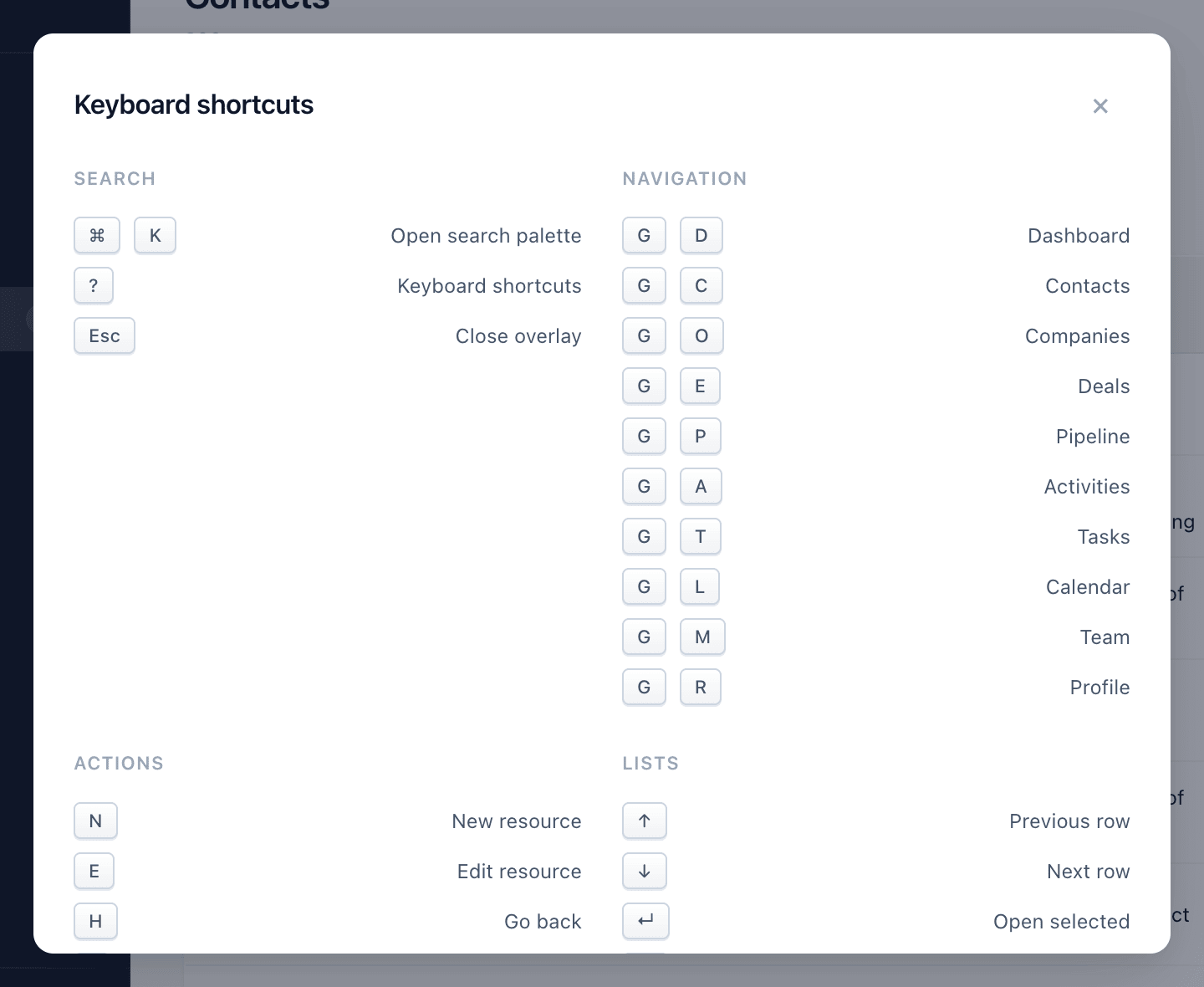
Press ? anywhere in SaleQ to see the full list of keyboard shortcuts. The most useful ones:
Navigation
- g then d — go to dashboard
- g then c — go to clients
- g then p — go to pipeline
- g then a — go to activities
- g then t — go to tasks
- h — go back to the previous page
Actions
- n — create new resource
- / — focus search
- Esc — close modal or cancel
- Enter — confirm / save
Sidebar hints
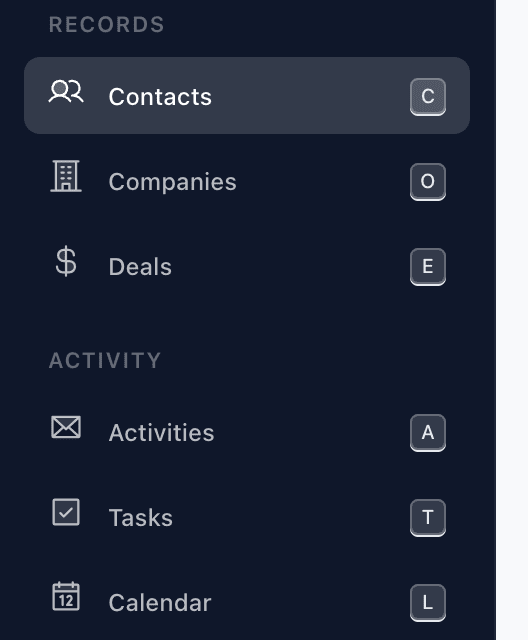
Press g and the sidebar lights up with hotkey hints next to each section. No memorization needed — the interface teaches you the shortcuts as you use them.
Built for your workflow
Keyboard shortcuts aren't bolted on — they're the primary interface. Combined with automatic Google sync, you rarely need to type data into SaleQ at all. Your clients, emails, and calendar events flow in automatically. Hotkeys let you navigate and organize that data at the speed of thought.