
Why a built-in booking page?
Most platforms make you pay for a separate scheduling tool — Calendly, Cal.com, SavvyCal — and then manually connect it. SaleQ includes booking pages for every user, with no extra cost and no integration to set up.
When someone books a meeting through your link, SaleQ creates a client record (if they're new) and an activity (the meeting) automatically. No copy-pasting from your calendar tool into your client list.
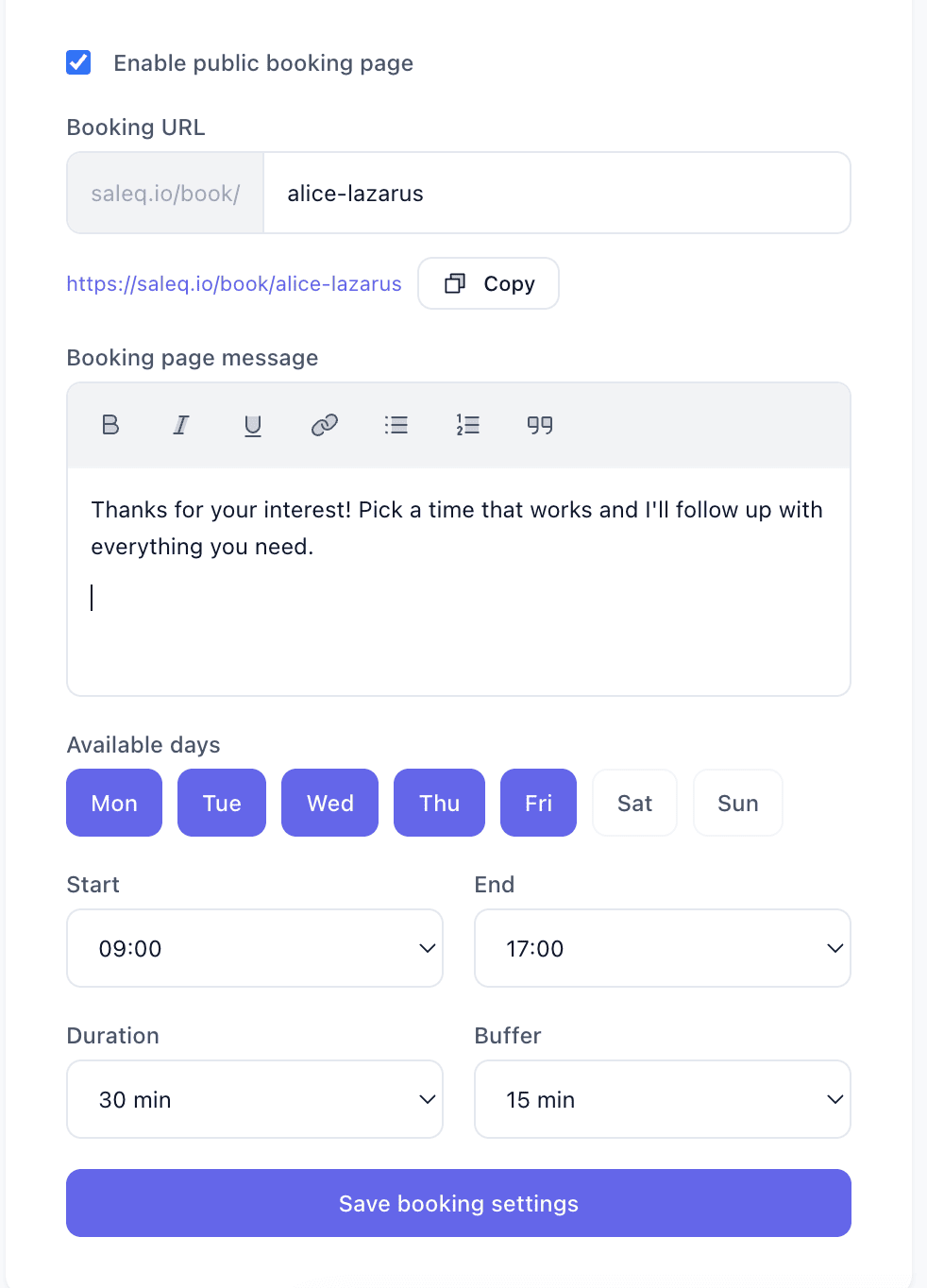
Setting up your booking page
- Go to your Profile page
- Toggle Enable public booking page
- Set your booking slug (e.g.
sarah-chenforsaleq.io/book/sarah-chen) - Configure your available days (default: Monday–Friday)
- Set your start and end times (default: 9am–5pm)
- Choose a meeting duration (15, 30, or 60 minutes)
- Set a buffer between meetings (5–30 minutes, default 15)
- Optionally add a booking page message with rich text to greet prospects
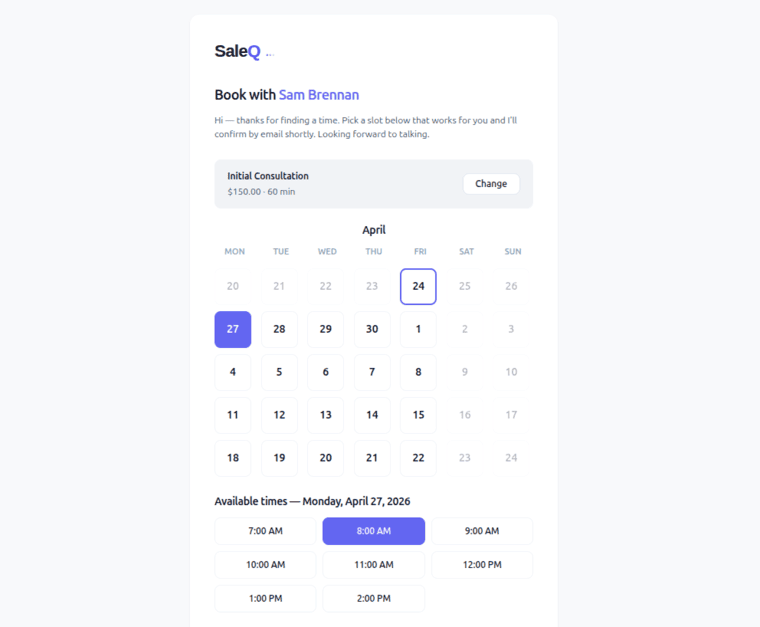
What prospects see
Your booking page is a clean, fast page showing your available time slots. Prospects see a calendar grid, pick a date, select a time, and fill in their details.
- Calendar shows available dates within your configured window (up to 28 days ahead)
- Time slots respect your availability, buffer time, and existing bookings
- Prospects enter their name, email, and optionally phone and notes
- Slots are double-checked at submission to prevent double-booking
What happens after booking
When someone books a meeting, both sides get an email:
- Prospect receives: a confirmation email with an
.icscalendar attachment they can add to any calendar app. The email includes a link to cancel if needed. - You receive: a notification email with the prospect's details, any notes they added, an
.icsattachment, and a direct link back to the activity in SaleQ.
In SaleQ:
- A client record is created with their name, email, and phone (or matched to an existing client by email)
- A meeting activity is created on the client's timeline with the booking details
- The meeting appears in your calendar view
Cancellation
Either side can cancel:
- Prospects cancel via the link in their confirmation email or in the
.icscalendar event - You cancel from the activity detail view in SaleQ
When cancelled, both sides receive a cancellation email. The activity is marked as cancelled in SaleQ but kept in the timeline for the record.